Built for Productivity and Collaboration

v1.2.0 — free, auto-updating
macOSWindowsLinux

5 apps replaced by one dedicated workspace.

Connect

Unified Workspace

One click to a live SSH session - SFTP file tree attached to the same connection. No second app, no second login.

docklab
Last login: Fri Jun 12 09:41:07 2026 from 10.0.4.12
~ ssh deploy@prod-api-01
✔ connected · host key verified · 86ms
~ tail -n 2 /var/log/nginx/error.log
[error] connect() failed (111) while connecting to upstream

Edit

Remote Monaco Editor

Open the broken config straight from the file tree. Syntax highlighting, multi-cursor, find and replace - saved back over the same SSH session.

docklab
Last login: Fri Jun 12 09:41:07 2026 from 10.0.4.12
~ ssh deploy@prod-api-01
✔ connected · host key verified · 86ms
~ tail -n 2 /var/log/nginx/error.log
[error] connect() failed (111) while connecting to upstream
~ nginx -t
✖ test failed: upstream "api" has no live backends
✔ nginx.conf opened in editor · fixed upstream port

Context

Context-Aware AI

The assistant reads your real session - not a pasted snippet. It sees the exit code, explains it, and proposes the exact fix.

docklab
Last login: Fri Jun 12 09:41:07 2026 from 10.0.4.12
~ ssh deploy@prod-api-01
✔ connected · host key verified · 86ms
~ tail -n 2 /var/log/nginx/error.log
[error] connect() failed (111) while connecting to upstream
~ nginx -t
✖ test failed: upstream "api" has no live backends
✔ nginx.conf opened in editor · fixed upstream port
~ systemctl status api.service
✖ api.service: failed · exit code 137 (OOM)
AI: 137 means the kernel killed the process - out of memory.
AI: Raise --max-old-space-size to 2048 and restart? [y/n]

Browse

Integrated Browser

Verify the fix on the live dashboard without leaving the workspace. Docs, Grafana, admin panels - one pane to the right.

docklab
Last login: Fri Jun 12 09:41:07 2026 from 10.0.4.12
~ ssh deploy@prod-api-01
✔ connected · host key verified · 86ms
~ tail -n 2 /var/log/nginx/error.log
[error] connect() failed (111) while connecting to upstream
~ nginx -t
✖ test failed: upstream "api" has no live backends
✔ nginx.conf opened in editor · fixed upstream port
~ systemctl status api.service
✖ api.service: failed · exit code 137 (OOM)
AI: 137 means the kernel killed the process - out of memory.
AI: Raise --max-old-space-size to 2048 and restart? [y/n]
~ systemctl restart api.service && curl -s localhost:3000/health
{"status":"ok","uptime":"4s"}
✔ dashboard green in the integrated browser

Collaborate

Shared Live Sessions

Pull a teammate into the exact same terminal - they watch the output live and chat alongside, no screen sharing, no copy-pasting logs.

docklab
Last login: Fri Jun 12 09:41:07 2026 from 10.0.4.12
~ ssh deploy@prod-api-01
✔ connected · host key verified · 86ms
~ tail -n 2 /var/log/nginx/error.log
[error] connect() failed (111) while connecting to upstream
~ nginx -t
✖ test failed: upstream "api" has no live backends
✔ nginx.conf opened in editor · fixed upstream port
~ systemctl status api.service
✖ api.service: failed · exit code 137 (OOM)
AI: 137 means the kernel killed the process - out of memory.
AI: Raise --max-old-space-size to 2048 and restart? [y/n]
~ systemctl restart api.service && curl -s localhost:3000/health
{"status":"ok","uptime":"4s"}
✔ dashboard green in the integrated browser
~ share session prod-api-01
✔ invite link copied · encrypted relay
✔ maria joined · can see this terminal live
› maria: postmortem notes added - ship it

Workflow

Full Infrastructure View

Terminal, browser and AI side by side - then save the whole layout as a workspace and reopen the entire context with one click tomorrow.

docklab
Last login: Fri Jun 12 09:41:07 2026 from 10.0.4.12
~ ssh deploy@prod-api-01
✔ connected · host key verified · 86ms
~ tail -n 2 /var/log/nginx/error.log
[error] connect() failed (111) while connecting to upstream
~ nginx -t
✖ test failed: upstream "api" has no live backends
✔ nginx.conf opened in editor · fixed upstream port
~ systemctl status api.service
✖ api.service: failed · exit code 137 (OOM)
AI: 137 means the kernel killed the process - out of memory.
AI: Raise --max-old-space-size to 2048 and restart? [y/n]
~ systemctl restart api.service && curl -s localhost:3000/health
{"status":"ok","uptime":"4s"}
✔ dashboard green in the integrated browser
~ share session prod-api-01
✔ invite link copied · encrypted relay
✔ maria joined · can see this terminal live
› maria: postmortem notes added - ship it
~ workspace save 'incident-prod-api'
✔ layout, sessions and panes saved
✔ restored in one click, any device

Not just a client. An ecosystem.

DockLab ships with a plugin system and 18 plugins built on it — live panels that run against the host you are connected to. Docker, git, nginx, PM2, systemd, security audits and more, one click away from your terminal.

AI tooling

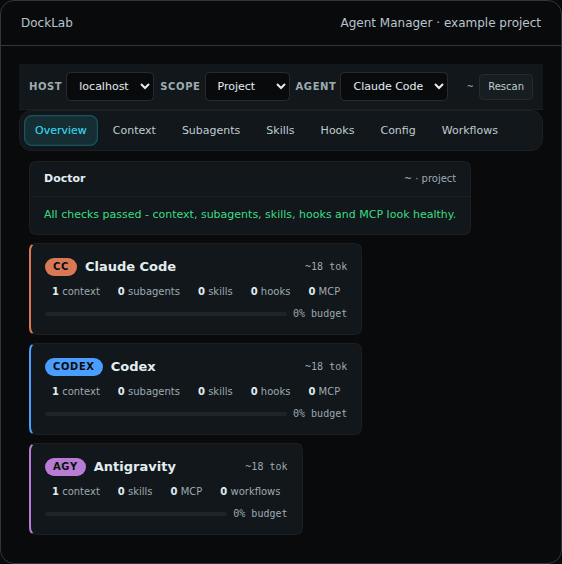
Agent Manager

Manage context, subagents, skills, hooks and MCP servers for Claude Code, Codex and Antigravity - across local and remote hosts.

Containers

Docker Assistant

Containers, images and volumes with live status. Detects docker-compose in the current directory; start, stop, restart from the sidebar.

Version control

Git Manager

A git GUI for remote repos: stage and unstage files, commit with an auto-generated message, push, pull and browse recent history.

Observability

Resource Monitor

Live CPU, RAM, disk and process stats for the connected host, refreshed every 5 seconds, right next to your terminal.

Security

Security Scan

Scans the remote directory for exposed credentials, private keys, world-writable files, hardcoded secrets and forgotten backups.

Ops

Systemd Services

Every service by state - running, failed, inactive. Start, stop and restart with sudo, with journal logs per service.

Premium plugins live on the Legacies Marketplace — or build your own with the plugin API: a manifest, a JS file, drag it into the window.

Security by architecture, not by promise

Zero-Knowledge Sync

Optional cloud sync is end-to-end encrypted on your device with a key derived from your password (scrypt + AES-256-GCM). The server stores a blob it cannot decrypt.

Local-First Vault

Hosts, credentials and AI keys live in an AES-256-GCM encrypted store on your machine. No account required to use DockLab.

Direct SSH + Key Pinning

Connections go straight from your machine to your servers — no relay in between. Host keys are pinned on first use and mismatches are blocked.

Telemetry is opt-in, anonymous and documented — read the privacy policy.

Frequently Asked Questions

The terminal is just the core. Around it: SFTP file management, a Monaco-based remote editor, an integrated browser, an AI assistant that works in the context of your session, and a plugin system with 18 plugins. One window instead of five apps.

Yes - the full application is free: SSH, SFTP, editor, browser, AI assistant, sync and all core features. Optional premium plugins are sold separately on the Legacies Marketplace.

Locally, in an AES-256-GCM encrypted store on your machine. If you enable cloud sync, data is end-to-end encrypted on your device with a key derived from your password - the server only ever sees an encrypted blob it cannot decrypt.

Bring your own key: Anthropic, OpenAI, OpenRouter and compatible providers. Keys are stored in the local encrypted store and prompts go directly from your machine to the provider you chose.

No. DockLab is local-first: hosts, credentials and preferences live on your device and direct SSH connections work without any cloud dependency. An account only adds optional encrypted sync across devices.

Yes. Start a shared session and your teammate sees the same terminal output live, with chat alongside - relayed in real time and never persisted after the session ends. Ideal for incident response and pair-debugging.

macOS (Apple Silicon and Intel), Windows and Linux (AppImage, deb, rpm), with built-in auto-updates on all three.

Run your workflow smarter.

Terminal, files, editor, browser and AI — one workspace. Free.

Latest release: v1.2.0

macOS builds are not notarized yet (indie project, no Apple Developer account) — on first launch, allow DockLab in System Settings → Privacy & Security. Updates are cryptographically signed on every platform.